
Intro: Use this calculator to add VAT to a price before tax or take VAT out of a total that already includes it. Enter an amount, choose the rate and read the net price, the VAT and the gross price.
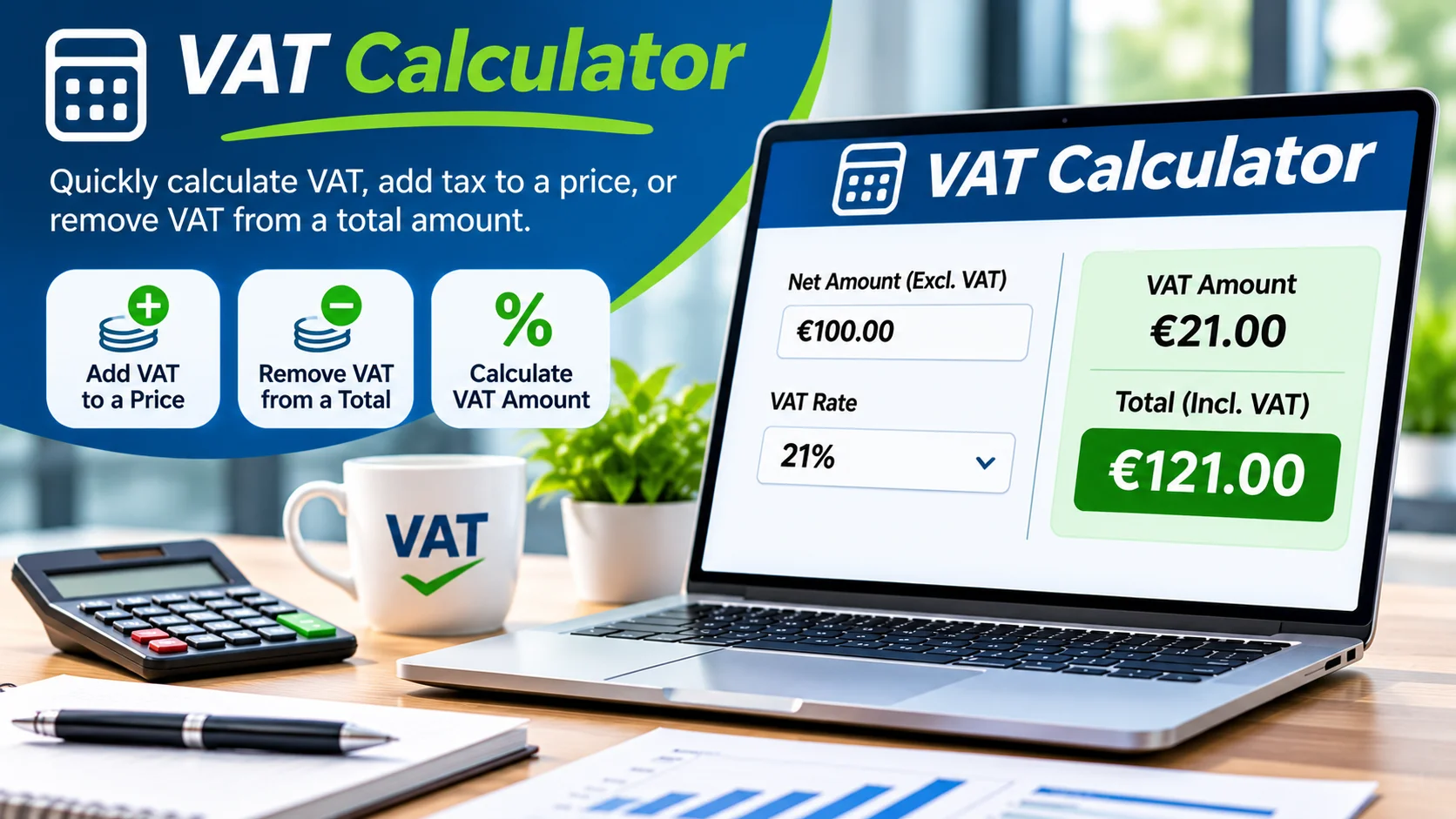
VAT Calculator: How to Add or Remove VAT (With Examples)
Calculating VAT can be confusing when you need to work out the tax on a product, service or business transaction. Whether you are adding VAT to a price or calculating the original amount before tax, using the correct formula helps you avoid costly mistakes.
The BizFinDesk VAT Calculator makes tax calculations easier. You can select a currency, enter an amount, choose an available calculation method and specify a tax rate. The calculator then displays the net amount, tax amount and gross amount.
Use our free VAT Calculator to calculate tax on your business prices and transactions.
Quick Answer: How Do You Calculate VAT?
To add 20% VAT to a net price, multiply the original amount by 1.20.
To remove 20% VAT from a gross price, divide the total amount by 1.20.
For example:
- £100 excluding VAT becomes £120 including VAT.
- £120 including VAT contains £100 net value and £20 VAT.
The basic formulas are:
To add VAT:
Gross price = Net price × (1 + VAT rate)
To remove VAT:
Net price = Gross price ÷ (1 + VAT rate)
When using these formulas, express the VAT rate as a decimal. For example, 20% becomes 0.20.
What Is VAT?
Value Added Tax (VAT) is a consumption tax applied to many goods and services. Businesses registered for VAT generally charge tax on taxable sales and may be able to reclaim eligible VAT paid on business purchases, subject to applicable tax rules.
There are two important terms to understand when calculating VAT:
Net price (excluding VAT): The original price before VAT is added.
Gross price (including VAT): The final price after VAT has been included.
For example, if a product costs £100 before VAT and the applicable tax rate is 20%, the VAT amount is £20 and the final price is £120.
Understanding the difference between net and gross prices is useful when preparing invoices, setting product prices and managing business expenses.
How to Add VAT to a Price
Adding VAT means calculating the tax on an amount that does not already include VAT.
Use these formulas:
- VAT amount = Net price × VAT rate
- Gross price = Net price × (1 + VAT rate)
Example: Adding 20% VAT
Suppose your business sells a product for £100 excluding VAT.
| Calculation | Amount |
|---|---|
| Original net price | £100.00 |
| VAT rate | 20% |
| VAT amount | £20.00 |
| Final gross price | £120.00 |
The calculation is:
£100 × 0.20 = £20 VAT
£100 + £20 = £120 gross price
You can perform the same calculation using the BizFinDesk VAT Calculator. Enter the net amount, select the calculation method for adding tax and enter the applicable percentage.
How to Remove VAT from a Price
Removing VAT means working backwards from a price that already includes tax.
You must divide the gross price by one plus the VAT rate. Simply subtracting the VAT percentage from the gross amount gives an incorrect result.
Use these formulas:
- Net price = Gross price ÷ (1 + VAT rate)
- VAT amount = Gross price − Net price
Example: Removing 20% VAT
Suppose a product costs £120 including 20% VAT.
| Calculation | Amount |
|---|---|
| Gross price | £120.00 |
| VAT rate | 20% |
| Net price | £100.00 |
| VAT amount | £20.00 |
The calculation is:
£120 ÷ 1.20 = £100 net price
£120 − £100 = £20 VAT
This formula helps you identify the original value before tax was included.
The reverse calculation can also be performed manually using this formula if your calculator’s available calculation options do not include a remove-tax mode.
VAT Calculation Examples at 20%
The following examples use a 20% VAT rate.
| Starting amount | Net amount | VAT amount | Gross amount |
|---|---|---|---|
| £100 net | £100.00 | £20.00 | £120.00 |
| £250 net | £250.00 | £50.00 | £300.00 |
| £500 net | £500.00 | £100.00 | £600.00 |
| £120 gross | £100.00 | £20.00 | £120.00 |
| £250 gross | £208.33 | £41.67 | £250.00 |
| £600 gross | £500.00 | £100.00 | £600.00 |
All examples are rounded to two decimal places.
How to Use the BizFinDesk VAT Calculator
The BizFinDesk VAT Calculator provides a straightforward way to calculate tax using your chosen currency, amount and tax percentage.
Follow these steps:
Step 1: Select a currency
Choose your preferred currency from the Currency dropdown.
The calculator displays USD – US Dollar by default. You can select another available currency for displaying your results.
Important: Changing the currency does not automatically determine the correct VAT or sales tax rate. You must enter the applicable percentage yourself.
Step 2: Choose a calculation method
Select the required option from the Calculation dropdown.
For example, the calculator displays:
Add tax to a net price
This option is used when you have an amount before tax and want to calculate the tax and final price.
Step 3: Enter the amount
Enter the original price in the Amount field.
For example, enter 100 if you want to calculate tax on a net amount of $100.
Step 4: Enter the tax rate
Enter the applicable percentage in the Tax rate (%) field.
For example, enter 20 for a 20% rate.
You can also use the Presets dropdown to select an example rate. Remember that presets are examples only and should not be treated as confirmation of the legally applicable rate.
Step 5: Review your results
The calculator displays three results:
- Net (before tax): The original amount excluding tax.
- Tax: The calculated tax amount.
- Gross (with tax): The final amount including tax.
For example, entering $100 at a 20% tax rate using the add-tax calculation produces:
| Result | Amount |
|---|---|
| Net (before tax) | $100.00 |
| Tax | $20.00 |
| Gross (with tax) | $120.00 |
Try the free BizFinDesk VAT Calculator to perform your own calculation.
VAT Rates in Different Countries
VAT rates are different across countries and may depend on the type of product, service and transaction.
Here are some general examples:
| Country | Standard rate | Other rates or treatments |
|---|---|---|
| United Kingdom | 20% | 5% reduced and 0% zero-rated |
| Netherlands | 21% | 9% reduced and 0% zero-rated |
| United Arab Emirates | 5% | 0% on qualifying supplies; some supplies are exempt |
| Pakistan | 18% on many federally taxable goods | Special rates, exemptions and separate service-tax rules apply |
These are general reference rates, not a complete list of tax treatments.
Zero-rated and exempt supplies are not the same. Reduced rates, exemptions and registration rules also vary by country.
Always verify the applicable rate with the relevant official tax authority before preparing an invoice or filing a tax return.
Official tax-rate references
United Kingdom: GOV.UK – VAT rates
Netherlands: Belastingdienst – VAT tariffs
United Arab Emirates: Federal Tax Authority – VAT information
Pakistan: Federal Board of Revenue – Sales Tax Act, 1990
Tax rules and rates can change. In Pakistan, federal sales tax on goods and provincial sales tax on services may have different rules and rates.
VAT vs US Sales Tax: What Is the Difference?
VAT and US sales tax are both consumption taxes, but they operate differently.
VAT is used in countries such as the United Kingdom, Netherlands and UAE. US sales tax is generally imposed on qualifying retail sales, with rates and rules varying by state and sometimes by city or county.
For example, suppose a US purchase costs $100 and the applicable combined sales tax rate is 8.5%.
| Item | Amount |
|---|---|
| Purchase price | $100.00 |
| Sales tax rate | 8.5% |
| Sales tax | $8.50 |
| Total price | $108.50 |
The 8.5% rate is only an example. It should not be assumed to apply throughout the United States.
For accurate information, check the official revenue department for the relevant state and local jurisdiction.
Official reference: USAGov – State taxes.
The BizFinDesk calculator can perform the arithmetic using a rate you enter. It does not automatically identify the correct sales tax rate for a particular US address or transaction.
The Most Common VAT Calculation Mistake
One common mistake when removing VAT is subtracting the tax percentage directly from a gross price.
For example, suppose an amount is £120 including 20% VAT.
An incorrect calculation would be:
£120 − 20% = £96
The correct calculation is:
£120 ÷ 1.20 = £100
The VAT amount is therefore £20.
Why does this happen?
Because the 20% VAT is calculated on the original net price, not on the gross price. This is why you must divide by 1 plus the VAT rate when calculating the net amount from a VAT-inclusive price.
Using the correct VAT calculation formula helps prevent pricing and invoicing mistakes.
Frequently Asked Questions About VAT
How do I add 20% VAT to a price?
Multiply the net price by 1.20. For example, £100 excluding VAT becomes £120 including VAT, with £20 VAT.
How do I remove 20% VAT from a price?
Divide the gross price by 1.20. For example, £120 including VAT becomes £100 excluding VAT, with £20 VAT.
What is the standard VAT rate in the UK?
The UK’s standard VAT rate is 20%. Certain goods and services qualify for a reduced rate of 5% or a zero rate of 0%, while some supplies are exempt.
What is the difference between VAT-inclusive and VAT-exclusive prices?
A VAT-inclusive price already contains VAT. A VAT-exclusive price is the original amount before tax is added.
Can I use a VAT calculator for different currencies?
Yes. You can choose an available currency in the BizFinDesk VAT Calculator to display your results. However, selecting a currency does not automatically select the correct tax rate.
Can I use a VAT calculator for US sales tax?
A calculator that accepts a custom tax percentage can perform the arithmetic for sales tax calculations. However, US sales tax rules and rates differ from VAT and vary by location. You must establish the correct rate separately.
Can a business reclaim VAT paid on purchases?
A VAT-registered business may be able to reclaim eligible VAT paid on business purchases, subject to registration requirements, documentation, business use and local tax rules. Some expenses are restricted or excluded.
Check the relevant tax authority or consult a qualified tax professional.
How do I calculate VAT from a gross amount?
Divide the gross amount by one plus the VAT rate to find the net amount. Then subtract the net amount from the gross amount to find the VAT.
Related BizFinDesk Business Tools
You may also find these free business tools useful:
- Invoice Generator – Create professional invoices with your billing and transaction details.
- Markup vs Margin Calculator – Understand markup and profit margin when setting selling prices.
- Profit Margin Calculator – Calculate profit and understand your business profitability.
Explore more practical financial explanations in our BizFinDesk Financial Guides.
Final Thoughts
Understanding how to calculate VAT is important when setting product prices, preparing invoices and managing business expenses.
The main formulas are straightforward: multiply a net price by one plus the tax rate to add VAT, or divide a gross price by one plus the rate to calculate the original net amount.
The free BizFinDesk VAT Calculator helps you calculate net amounts, tax and gross prices using a currency and tax percentage you select.
Use the calculator for quick estimates, but always verify the applicable tax rate and treatment with the relevant tax authority before making tax or accounting decisions.
Disclaimer: This article is for general educational purposes and does not constitute tax, legal or accounting advice. VAT and sales tax rules vary by country, product, service and transaction. The BizFinDesk calculator performs mathematical estimates and does not determine tax registration requirements, exemptions, product classifications or the legally applicable rate.